
As a Provider, once you have logged into your account please follow these steps:
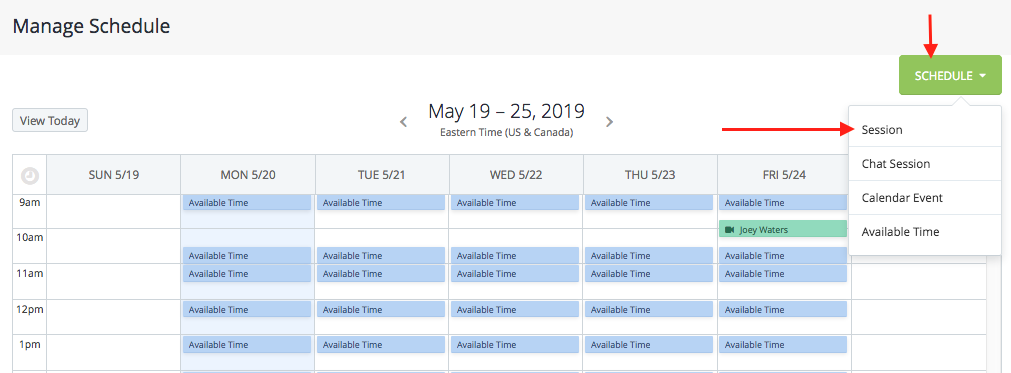
1. Navigate to your "Manage Schedule" tab (found on the left-hand side)
2. Hover over the "Schedule" button in the upper right-hand corner of your screen
3. If booking an in person or video Session, select the "Session" option from the list
4. On the first step in the module that pops up, to define whether this is a video or in-person session, please select the drop down icon (which will automatically populate as a video session)
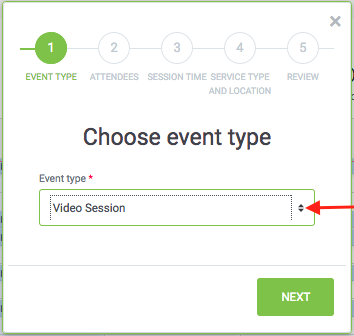
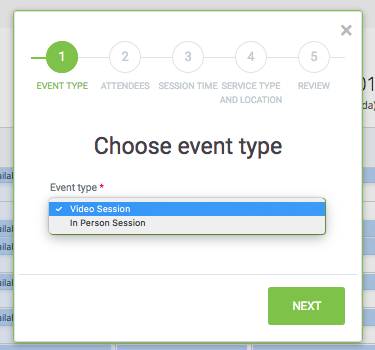
After selecting your desired session type, select "Next"
5. On step 2 "Attendees" please be sure to select the "Include Me" option above the "User" drop down.
**Before selecting your desired client, please be sure to add them to your network, if you have not previously done so**
6. From the Choose Attendees portion, this is also where you are able to invite a user as a guest if you are adding someone who is only joining as a guest and is not yet a client you have added.
7. Step 3 "Session Time" is where you define the date and time you wish to hold the session.
This is also where you can indicate whether or not this is a repeating session:

- You must first select "repeat session." Once completed you can continue on to indicate the day(s) and how frequently the session will be recurring.
** On the 4th step, if you are on one of our Private Practice (monthly subscription) plans, for location, simply select "determine attendee from location."
Comments
0 comments
Please sign in to leave a comment.