
As a Provider, once you have logged into your account please follow these steps:
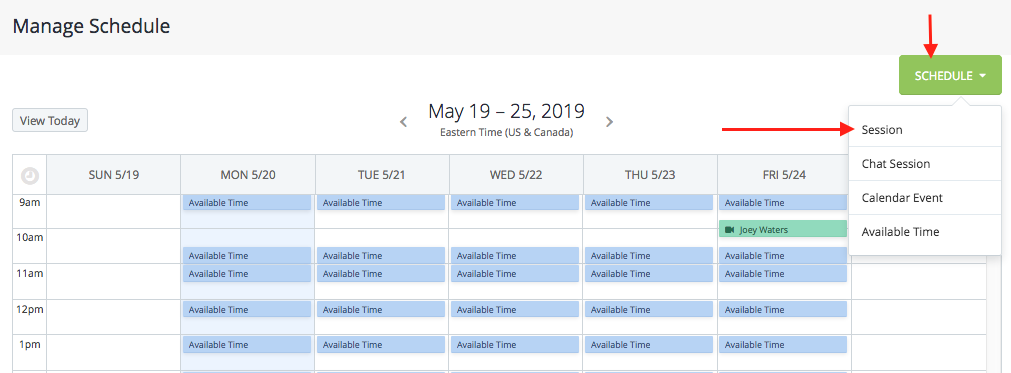
1. Navigate to your "Manage Schedule" tab (found on the left-hand side)
2. Hover over the "Schedule" button in the upper right-hand corner of your screen
3. If booking an in person or video Session, select the "Session" option from the list
4. On the first step in the module that pops up, to define whether this is a video or in-person session, please select the drop down icon (which will automatically populate as a video session)
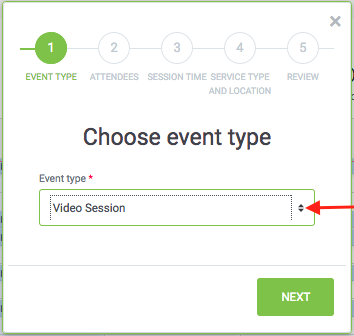
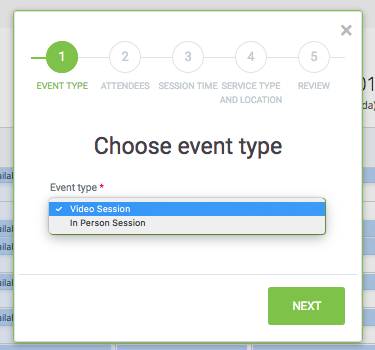
After selecting your desired session type, select "Next"
5. On step 2 " Choose Attendees" please be sure that the "Include Me" has been selected.
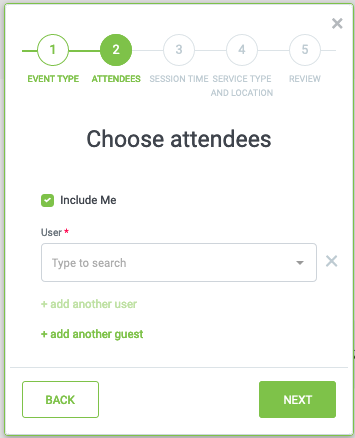
**Before selecting your desired client, please be sure to add them to your network, if you have not previously done so, otherwise they will not appear in the drop-down**
6. To add an existing user, select the name of the client from the drop-down in the "user" section.
7. To add addition existing users/clients, select "add another user"
8. To add a guest (not currently associated as an existing client) select "add another guest"
The 3rd step is where you indicate your desired session time.
**If using Mozilla Firefox, after selecting the date, please be sure the time is being displayed with "/" rather than "-" in-between numbers. Otherwise, you will receive an error.
On the Forth step, if you are on one of our Private Practice (monthly subscription) plans, for location, simply select "determine attendee from location."
Comments
0 comments
Please sign in to leave a comment.