
1. Go to the "Manage Schedule" tab on the left-hand side of your screen.
2. Select the "Schedule" button in the upper right-hand corner.
3. From the drop-down, select "Available Time."
4. A window will appear allowing you to set the specifics for your available time.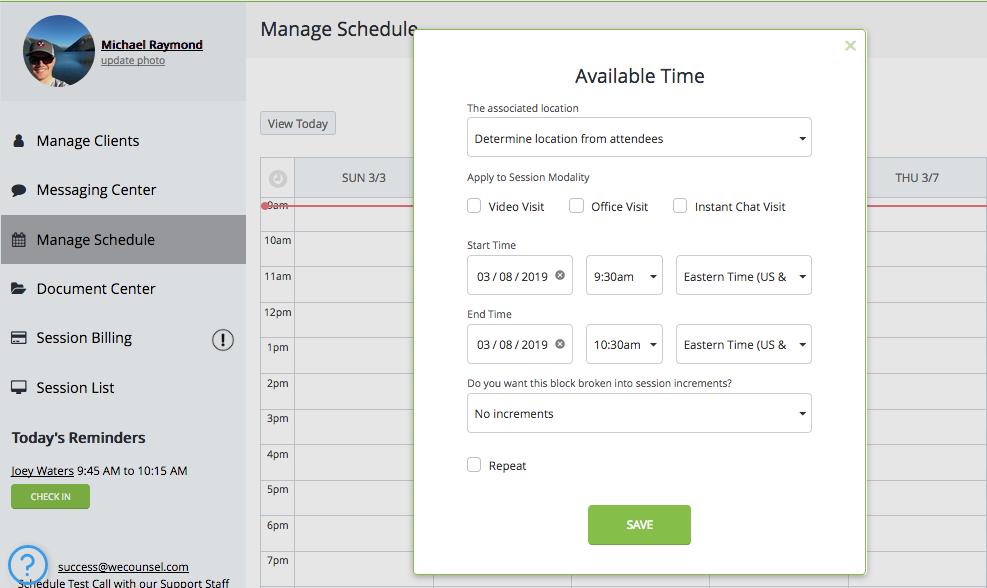
5. From this window, you will want to make sure to select location (if applicable to your practice having multiple locations OR if you have been accepted by one or more of our opportunities). Additionally, you will want to indicate what this available time can be booked for: Video Session, Office Visit or Instant Chat Visit.
6. Another option for you to indicate for this available time is whether or not it will be on a repeating basis of other days throughout the week. You can do so by checking Repeat and selecting the appropriate repeat parameters.
*Important to note* To avoid having one large block of time spread across multiple hours, you will need to break that available time into increments.
If you would like your time broken up into 15, 30 or 60-minute increments, select the dropdown below “Do you want this block broken into session increments?” This “Increments” dropdown will populate with the duration of time that you have previously created service types for. Service types must be created in your "Settings" to utilize this option.
*Our system requires that the increments fit evenly into the available time you're scheduling. So, for 45-minute increments, you must be scheduling a time frame that is divisible by 45. Otherwise, our system will generate an error.
Example: 9:00 am - 11:00 am (broken into 45 min increments) will error since it is a full 2-hour time frame.
9:00 am - 10:30 am (broken into 45 min increments) will be successful since it is only a 90-minute time frame
Comments
0 comments
Please sign in to leave a comment.