
The Opportunity Board is a place for behavioral health providers to easily connect with facilities in need and begin receiving referrals.
In this article:
- How to apply for an Opportunity
- What to expect after applying for an Opportunity
- What to expect after completing a session
How to apply for an Opportunity
Make sure your public profile is fully filled out by going to Settings in your portal and clicking the Public Profile tab. Organizations may look at this to vet providers.
Note: WeCounsel in no way influences the decision of an organization to accept or decline a provider’s application. WeCounsel is only notified if a provider should be accepted, at which point the provider is immediately notified. WeCounsel is unable to give status updates on provider applications.
What to expect after applying for an Opportunity
- If you are accepted, you’ll be notified by email from success@wecounsel.com (be sure to check your spam folder and whitelist this address.)
- Make sure to set up your Public Profile and Available Time or you will not be able to receive the referrals.
- When adding new patients, you'll have a dropdown to select what organization they are associated with.
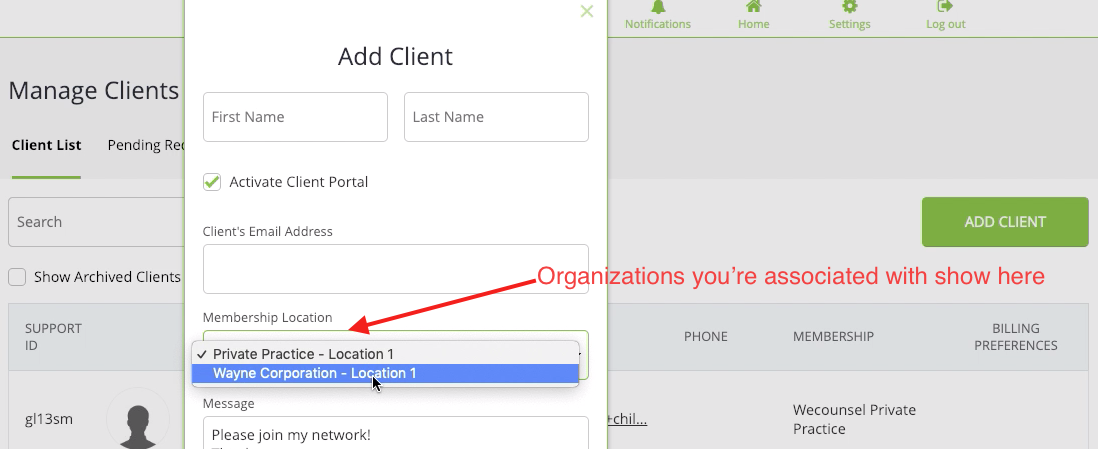
- A new option will appear under the Resources drop-down to switch "modes."
- This allows you to access the organization's Service Types and features.
- This will be important for scheduling sessions and generating superbills if applicable.

- Based on the settings of the organization:
- A new tab may appear on your Session List called On-Demand Queue.
- You will see a switch under your profile picture for Offline or On-Call.
- Be sure to switch to Offline if you’re in your portal doing other work and can’t accept patients.

- When the organization has a patient that needs care, they will place them in the On-Demand Queue or schedule a session directly with you.
- If they request a session with you, the request will show what organization it came from so that you can distinguish between private practice and Opportunity Board sessions.
- The On-Demand Queue includes patient information that they enter during their intake process. The patient will appear in your queue as soon as they begin the intake process, so you may have to wait a short time and refresh the page to see specific Case Information populate.
- In the On-Demand Queue, Case Information will appear in the column just to the left of the Claim button.
- You can click Claim On-Demand sessions to be taken into the session and start seeing the patient right away, just like clicking “Check In” for your other sessions.
After successfully completing a session:
- You should change the Session Status to “Complete.”
- Utilize the Session Status options for all sessions so that the organization can clearly see completions, no-shows, technical difficulties, etc.
- The timing of payment may vary depending on the organization you are working with. WeCounsel will handle the payment of providers based on sessions completed.
Comments
0 comments
Please sign in to leave a comment.