
Chat can be accessed three ways: During a regular video conference session, a chat only session, or using the Chat Now feature.
To access chat during a video session, check-in to the session and open the chat box, which will be located in the bottom right-hand corner. Enter a message and hit the Enter key.
To schedule a chat only session, hover over the Schedule drop-down on the Session List or Manage Schedule page and click Chat Session.
When it’s time for the chat session, go to your Sessions List page and click Start Chat.
To begin an instant chat session:
- Log into your provider account.
- Click on Manage Clients.
- Once in the Manage Clients section, you will see your list of clients as seen below.
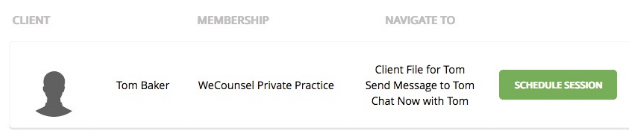
- Click on the Chat Now button.
- This will prompt you to select a session type if you wish to bill. Otherwise, select Do Not Bill.
- Your chat session will start and be in the bottom right-hand corner of the screen. You can navigate to other parts of the portal and the chat will not go away.
The content of chat sessions are not saved. If you wish to save a copy of the chat transcript, you'll need to copy and paste it into a note.
Comments
0 comments
Please sign in to leave a comment.