
- Login to your admin account and click User Management.
- Click Create New User.

- Choose the User Type (ie, patient, provider, org admin, scheduler)
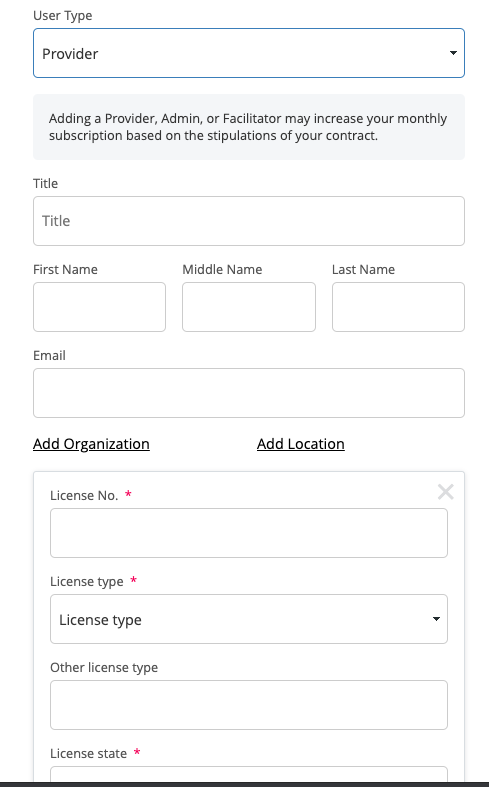
- Title is for what should come before their name (ie Dr. Justin Hoffman)
- Enter their name and email
- Click Add Organization and Add Location to choose where this user should be located.
- A user can be in more than one organization and location. There is not a limit to how many. A user should not be in an org and the org under it; they should be in one or the other.
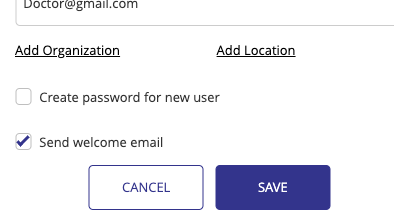
- A user can be in more than one organization and location. There is not a limit to how many. A user should not be in an org and the org under it; they should be in one or the other.
- If desired, check the box to create a password for the user.
- They will not be prompted to create their own password in this case.
- If "Send Welcome Email" is checked, an email will immediately be sent to the user inviting them to join the platform and create their own password.
Note, that if a password is created for the user, they will not be prompted to create their own password, but can reset their password anytime.
(Optional) Once a client is created, you may want to associate him/her to a provider in their organization. You can do this
Comments
0 comments
Please sign in to leave a comment.